

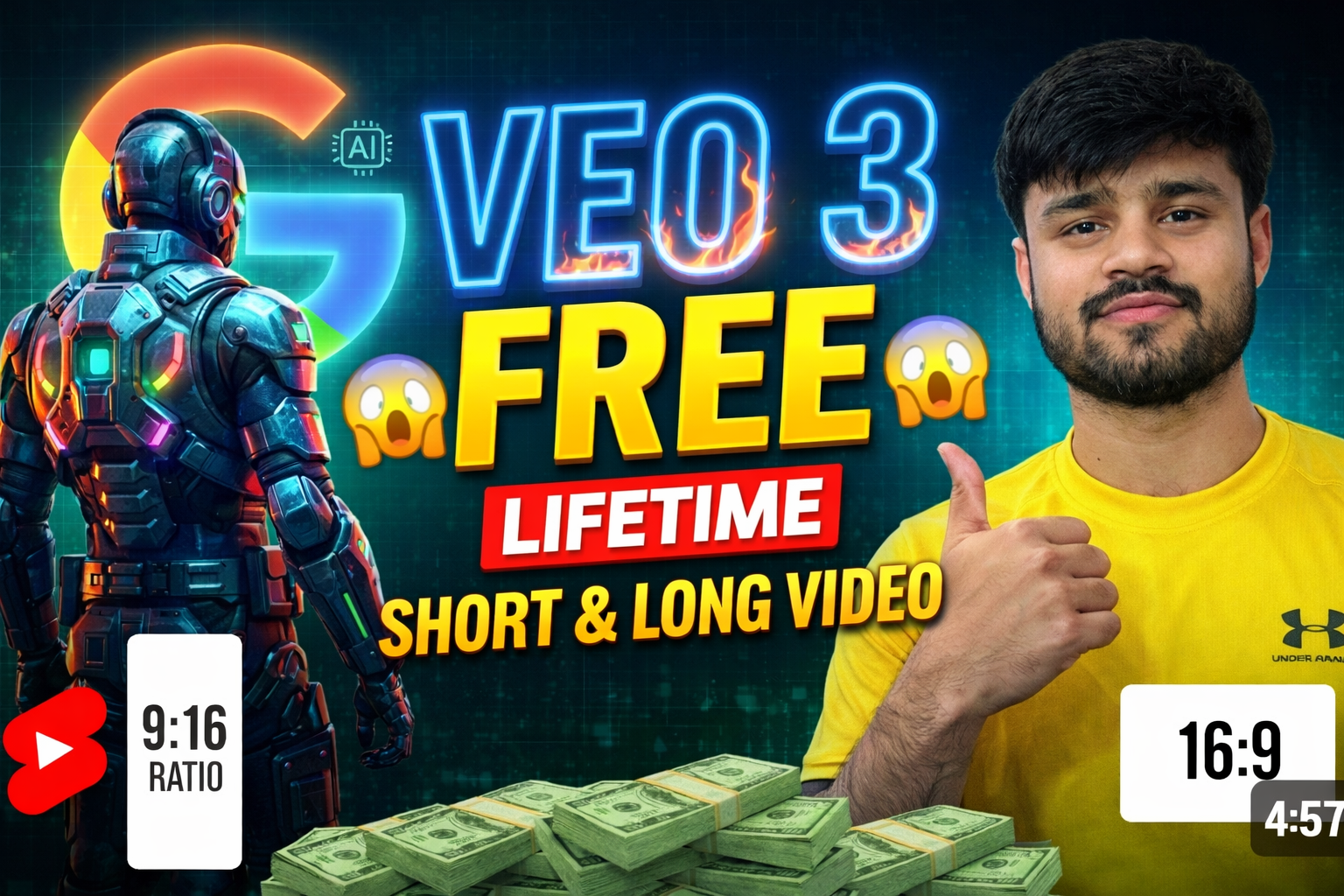
🔥 Google Veo 3 FREE Unlimited – How to Use
Discover how to use Google Veo 3 for FREE and generate unlimited AI videos easily. This powerful tool allows you to create professional videos using just an image and a simple prompt.
With this method you can:
- Create AI videos
- Start YouTube automation
- Make Reels & Shorts
- Build your own AI app
How to Use Veo 3:
- Open Google Veo 3
- Paste the prompt
- Upload your image
- Add animation instructions
- Generate your video 🎬
This method is trending right now — don’t miss it!
💡 Master Prompt (Copy Below)
Create an app called “AI Animation Studio”. This app lets users upload an image and describe how they want it animated, then automatically generates a video and displays it for download.
Flow structure:
1. Image Upload
Title: “Upload Your Image”
Description: “Upload your JPG or PNG image.”
Input Type: File Upload (JPG, PNG)
2. Animation Instructions
Title: “Animation Instructions”
Description: “Describe how you want your image to move or animate.”
Input Type: Text Area
3. Generate Video Prompt
Role: You are an expert video prompt generator.
Task: Combine the uploaded image and animation instructions into a detailed video generation prompt.
Inputs Used: Image Upload, Animation Instructions
4. Generate Animated Video
Task: Use the generated video prompt and uploaded image to create an animated video.
Inputs Used: Generate Video Prompt, Image Upload
5. Display Video and Download
Task: Display the final generated video in a simple single-page view.
Include a “Download Video” button.
Inputs Used: Generate Animated Video
Connect all steps in this exact order:
Image Upload + Animation Instructions → Generate Video Prompt → Generate Animated Video → Display Video and Download
